1The Starter view
After logging in at app.facturado.de you see the main menu on the left. In the Starter plan it is reduced to what you need to sell and to buy — plus the master data both of them build on. Anything your plan does not include is hidden, rather than leading you into empty screens.
The facturado interface is in German. Menu entries and buttons on this page are shown exactly as they appear on screen, with an English explanation next to them.
The overview, your email mailbox right inside the ERP, and every file facturado has generated.
Quotes, orders and outgoing invoices — from customer enquiry to e-invoice.
Demands, supplier enquiries, purchase orders and incoming invoices.
Delivery notes to your customers under Warenausgang (goods issue), goods from your suppliers under Wareneingang (goods receipt).
Accounts for customers and suppliers, and your articles.
At the top right, your avatar opens Einstellungen (settings) and Mein Profil (profile). Next to it sit the AI assistant and the camera, which scans, photographs or uploads documents.
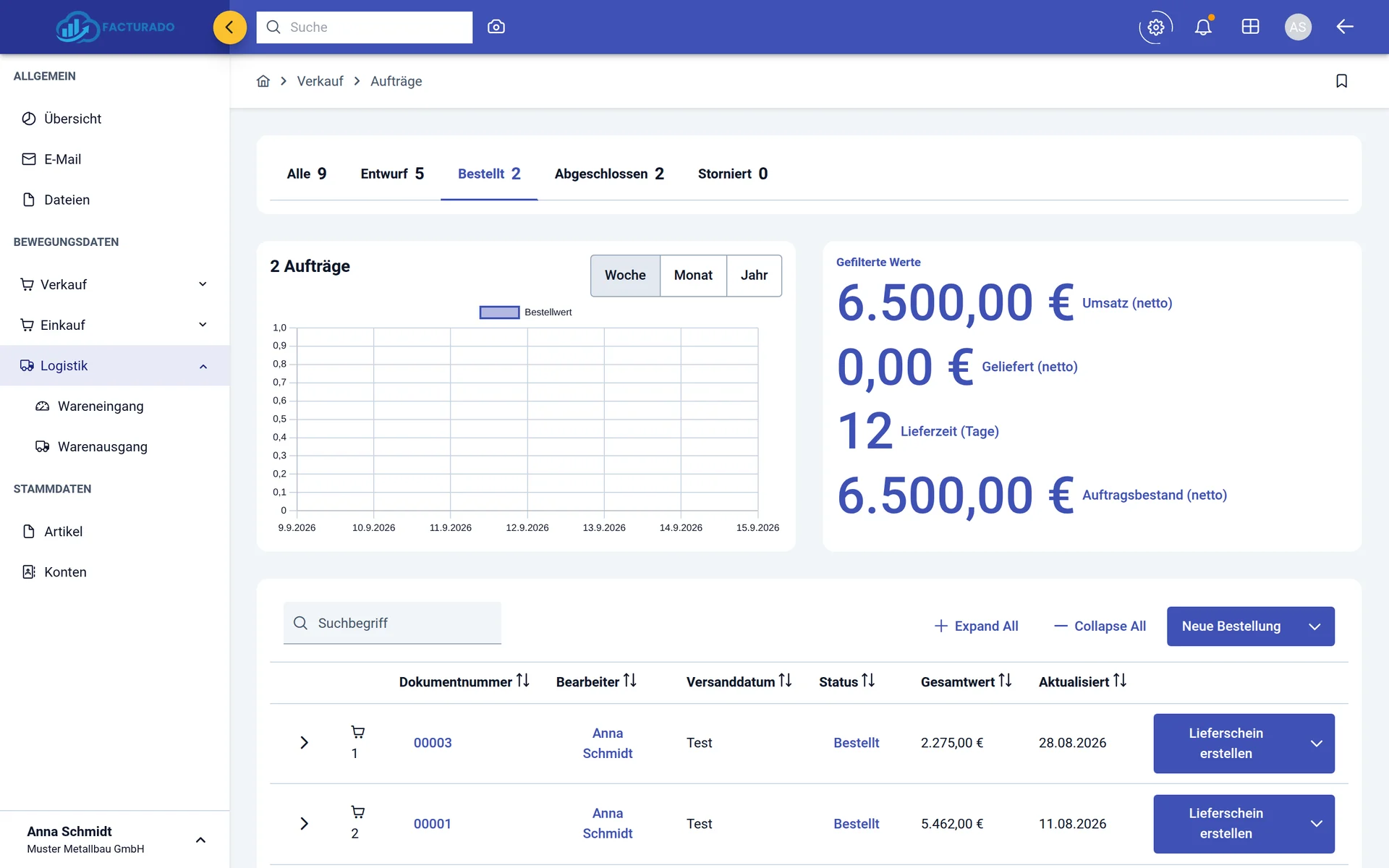
Every list works the same way: a button at the top right creates a new document, and every row has its own button with a small arrow ▾ for further actions — turning a quote into an order, for example. In this guide, "Zeile ▾" stands for exactly that row menu.
2First steps
Your login details arrive by email with the subject "Ihr facturado System ist bereit" (your facturado system is ready). Change the password it contains after your first login under
- 1Fill in your internal account
Company name, address, VAT id, bank details, logo and number ranges.
- 2Connect an email address
So documents are sent from your own mailbox.
- 3Invite your staff
Under
AvatarEinstellungenInterne Benutzer (internal users); user groups decide which areas someone sees. - 4Create customers, suppliers and articles
Or capture them straight from your first document.
- 5Write your first document
A quote, an invoice or a purchase order — from here on it is day-to-day business.
3Setting up your internal account
The internal account (Internes Konto) is your own company. Sender, address, bank details and logo on every document come from it — as do the mandatory details of every e-invoice. It is created under the name "Admin" when your system is provisioned; all you have to do is complete it.
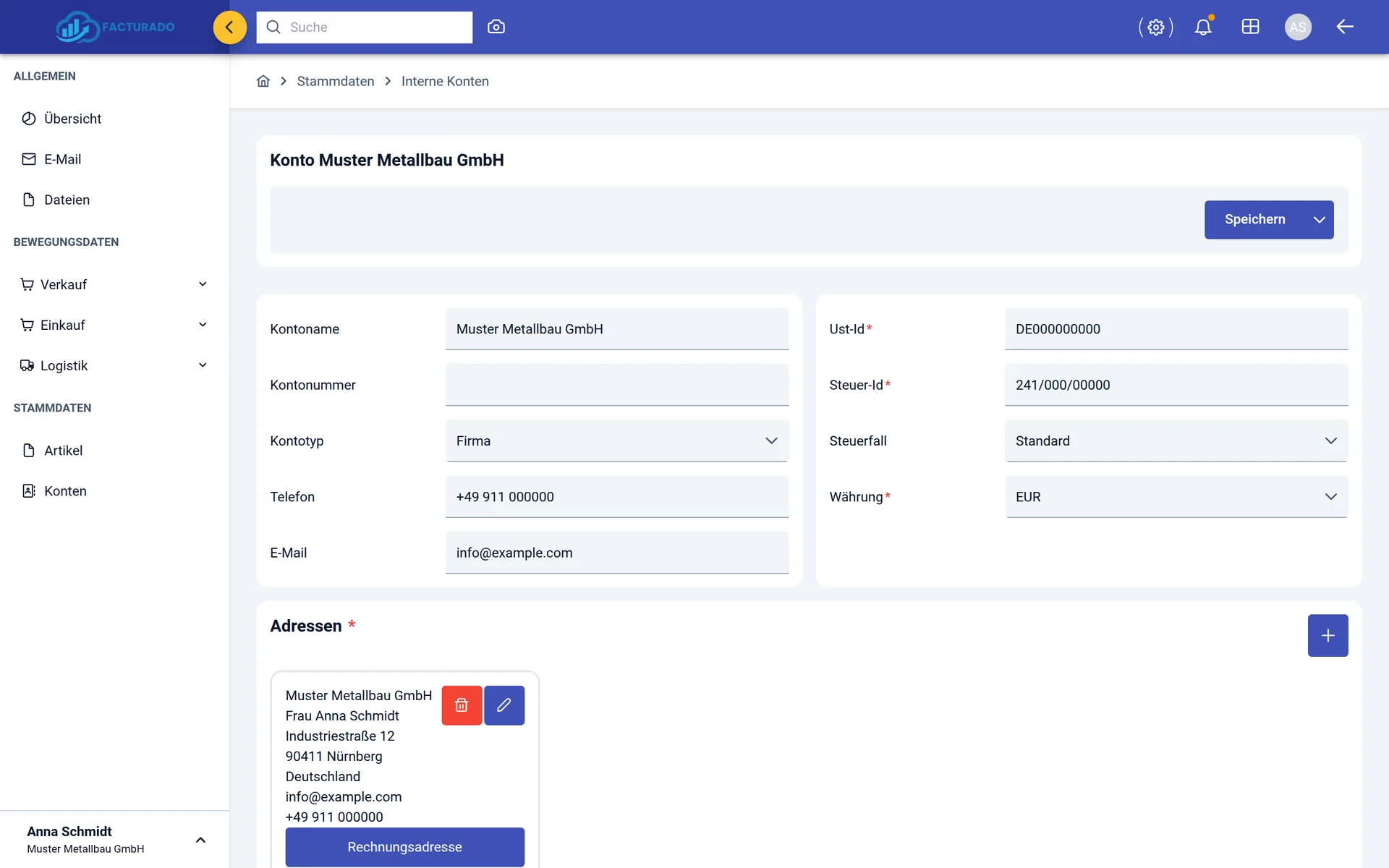
For a valid e-invoice, facturado needs your address, VAT id or tax number and a bank account — plus the name, email and phone number of the employee handling the document.
Kontoname (your company name), Ust-Id (VAT id), Steuer-Id (tax number), Währung (currency), Steuerfall (tax case), phone and email.
Add an address with + and mark it as Rechnungsadresse (billing address): company name, street, postcode, city, country, email.
Account holder, IBAN, BIC and bank name — shown on the invoice and embedded in the e-invoice.
Name, payment period in days, cash discount in % and discount days — e.g. "2 % within 14 days, net 30".
Firmenlogo (logo), a PDF Hintergrundbild as digital letterhead and the PDF Fußzeile (footer) with management, register court and bank.
Per document type: prefix, date part (none, year, month or day), number of digits and suffix. A number is only assigned once the PDF is generated.
Subject and text for quote, order confirmation, invoice, reminders, purchase enquiry, purchase order and more — with placeholders for document number and recipient.
Which employees work in this company. Save the account first, then add users.
The Starter plan includes one internal account. If you run several companies, Professional lets you add more and switch between them in the profile area at the top of the menu.
4Setting up email addresses
facturado sends quotes, invoices and purchase orders through your own mailbox — your customers see your address as the sender, not that of a third-party service. Over the same connection facturado reads the mailbox, so you can take incoming documents straight into the system. All you need are the IMAP and SMTP details of your email provider.
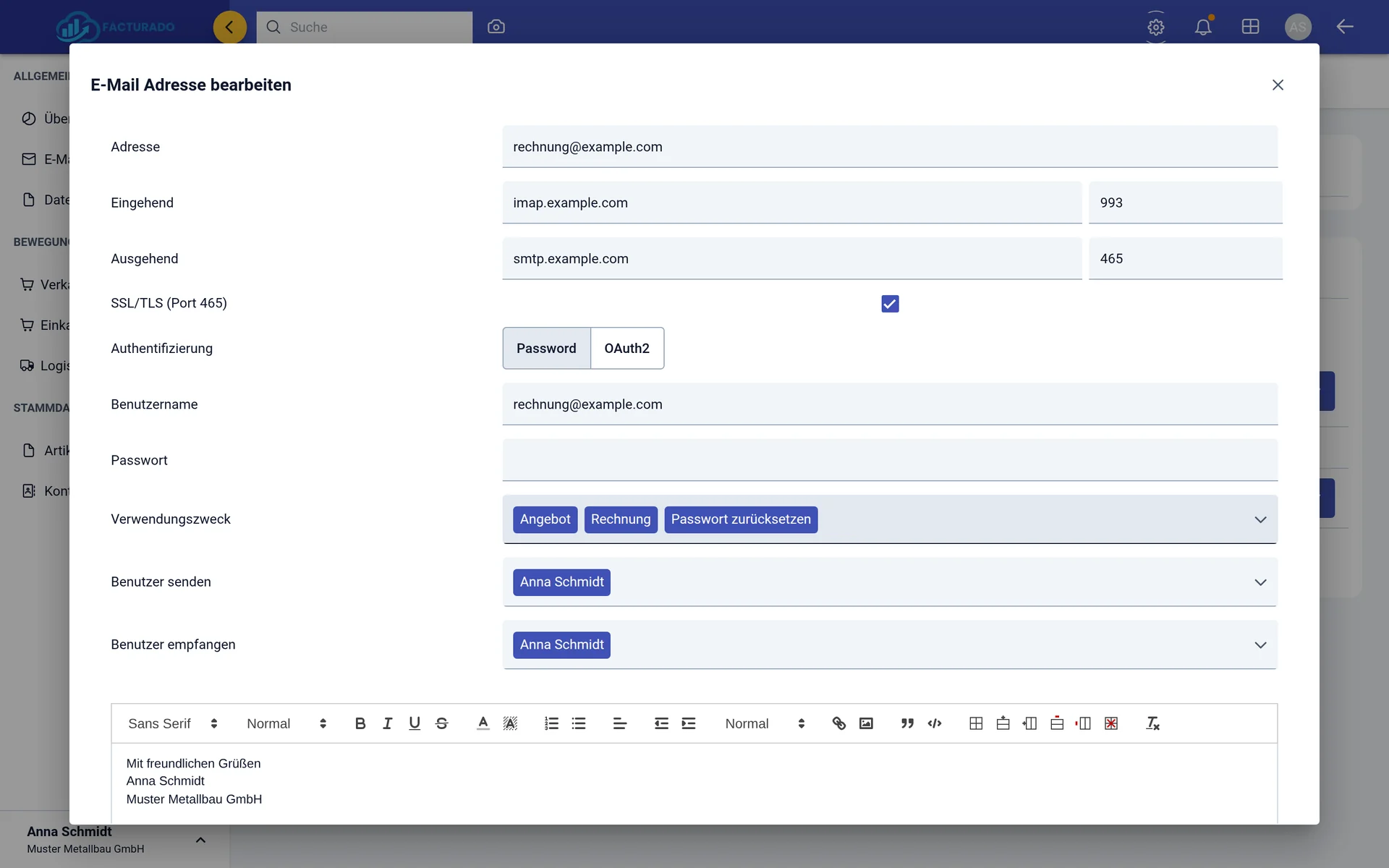
| Field | What to enter |
|---|---|
| Adresse | The email address, e.g. invoices@your-company.com |
| Eingehend | Incoming: IMAP server and port — usually 993 |
| Ausgehend | Outgoing: SMTP server and port — usually 465 |
| SSL/TLS (Port 465) | Ticked automatically for port 465 |
| Authentifizierung | Authentication: Password with user name and password, or OAuth2 for providers such as Microsoft 365 |
| Verwendungszweck | Purpose: which documents this address sends — quote, invoice, reminders, purchase enquiry … |
| Benutzer senden | Who may send from this address |
| Benutzer empfangen | Who sees the mailbox under Allgemein › E-Mail |
| Text box at the bottom | Your signature — appended to every email |
Typical server details of common providers — when in doubt, check your provider's help pages:
| Provider | IMAP | SMTP | Note |
|---|---|---|---|
| IONOS | imap.ionos.de : 993 | smtp.ionos.de : 465 | Mailbox password |
| STRATO | imap.strato.de : 993 | smtp.strato.de : 465 | Mailbox password |
| Google Workspace / Gmail | imap.gmail.com : 993 | smtp.gmail.com : 465 | App password, not the account password |
| Microsoft 365 | outlook.office365.com : 993 | smtp.office365.com | OAuth2 from your Microsoft app registration |
The purpose decides the preselected sender: e.g. invoices@ for invoices and reminders, purchasing@ for enquiries and purchase orders.
Also tick the purpose "Passwort zurücksetzen" (password reset) on one address. Without it, facturado cannot send your staff a reset email.
The signature belongs to the address; subject and body belong to the E-Mail Vorlagen (email templates) in the internal account.
A mailbox is only visible to users listed under Benutzer empfangen — accounting does not have to read along with sales.
5Customers, suppliers & articles
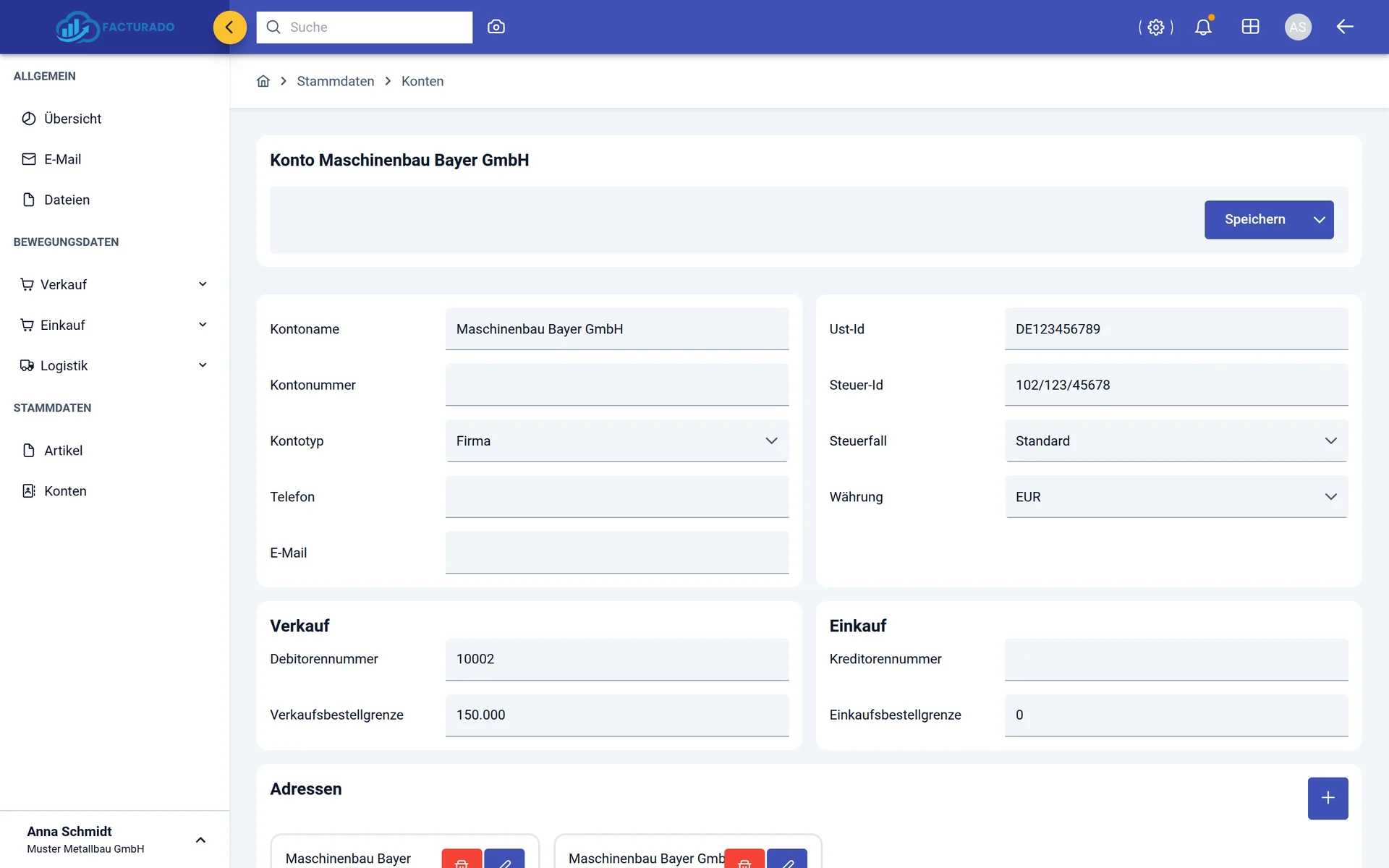
facturado has no separate customer and supplier lists: every business partner is an account. An account with a debtor number is your customer, one with a creditor number your supplier — and a partner who is both simply has both numbers.
Name, VAT id and tax case — standard, reverse charge, small-business exemption or intra-community triangular transaction. In the Verkauf and Einkauf areas, the debtor or creditor number, below that a default payment term. Add addresses with + and set the defaults with Rechnungsadresse (billing) and Lieferadresse (delivery) — they are copied into every new document.
Zeichnungsname as the description, internal article number, unit, VAT rate and sales price group. Create recurring services once as an article; one-off items go into the document as a free line item.
6Sales
In sales, every document is created from the one before — the delivery note included. Line items, addresses and terms are carried forward — you only type them once.
- 1Write a quote
VerkaufAngeboteNeues Angebot First pick the customer in the "Konto auswählen" (select account) dialog — billing and delivery address, your own company and you as the editor are filled in. Artikel hinzufügen searches for articles; the arrow next to it adds a free line item. The eye icon in the toolbar shows a watermarked preview without assigning a number.
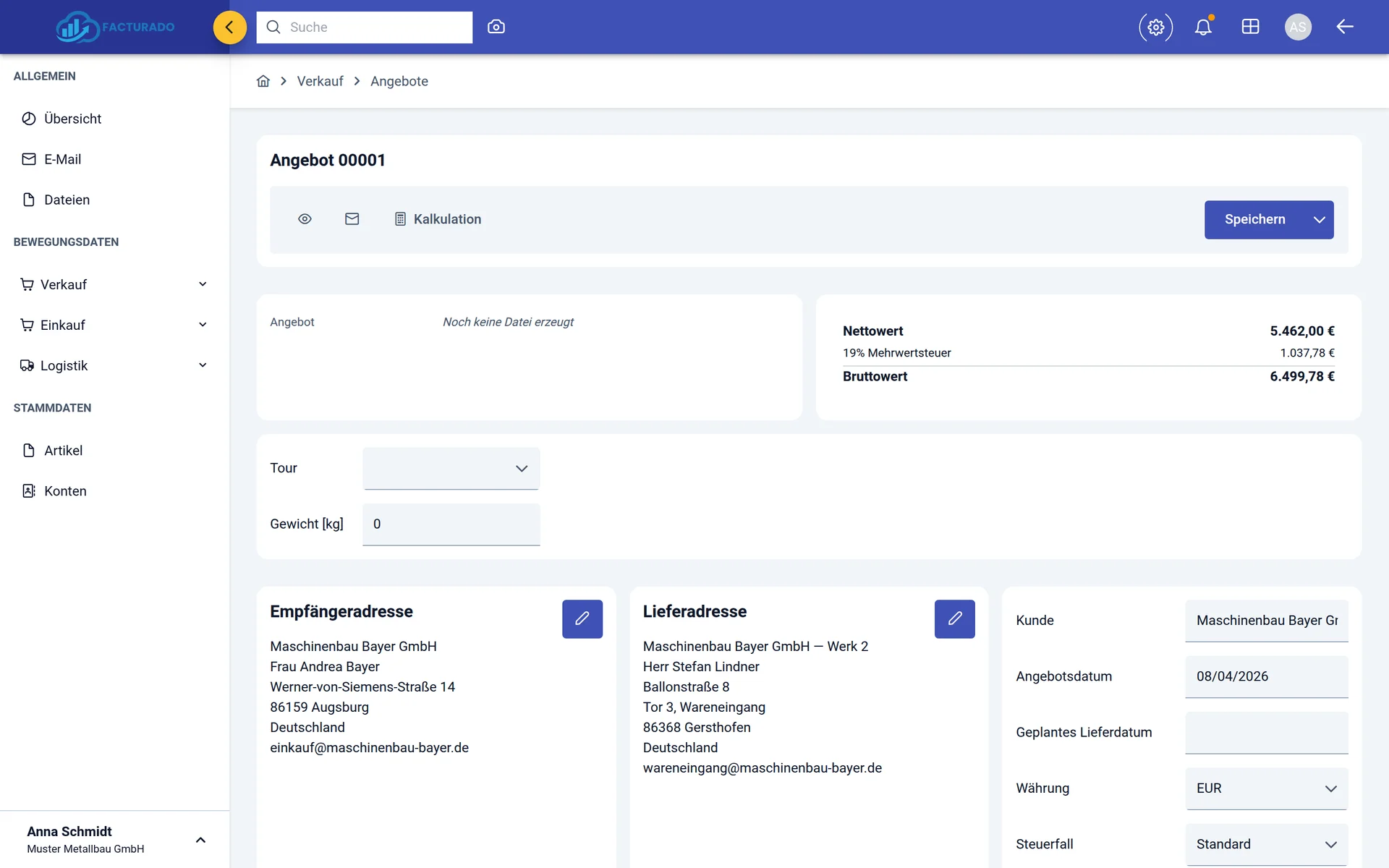
A quote with customer, addresses and totals - 2Generate and send the PDF
Speichern ▾PDF herunterladen Now the document gets its number from the number range, and the PDF appears in the Dateien (files) card. The envelope next to the file opens an email with the PDF attached; sender, subject and text are already filled in from the address and the template.
- 3The quote becomes an order
VerkaufAngeboteZeileBestellen When the customer accepts, choose the quantities they order — even just part of the quote. The order opens in a new tab; its PDF is your order confirmation.
- 4The order becomes a delivery note
VerkaufAufträgeZeileLieferschein erstellen Choose the quantities going out, plus delivery date and delivery address — partial deliveries are possible. The delivery note then sits under Logistik › Warenausgang (goods issue); generate its PDF there and put it with the goods or send it by email. The Rechnung (invoice) button in the same row bills exactly what was delivered.
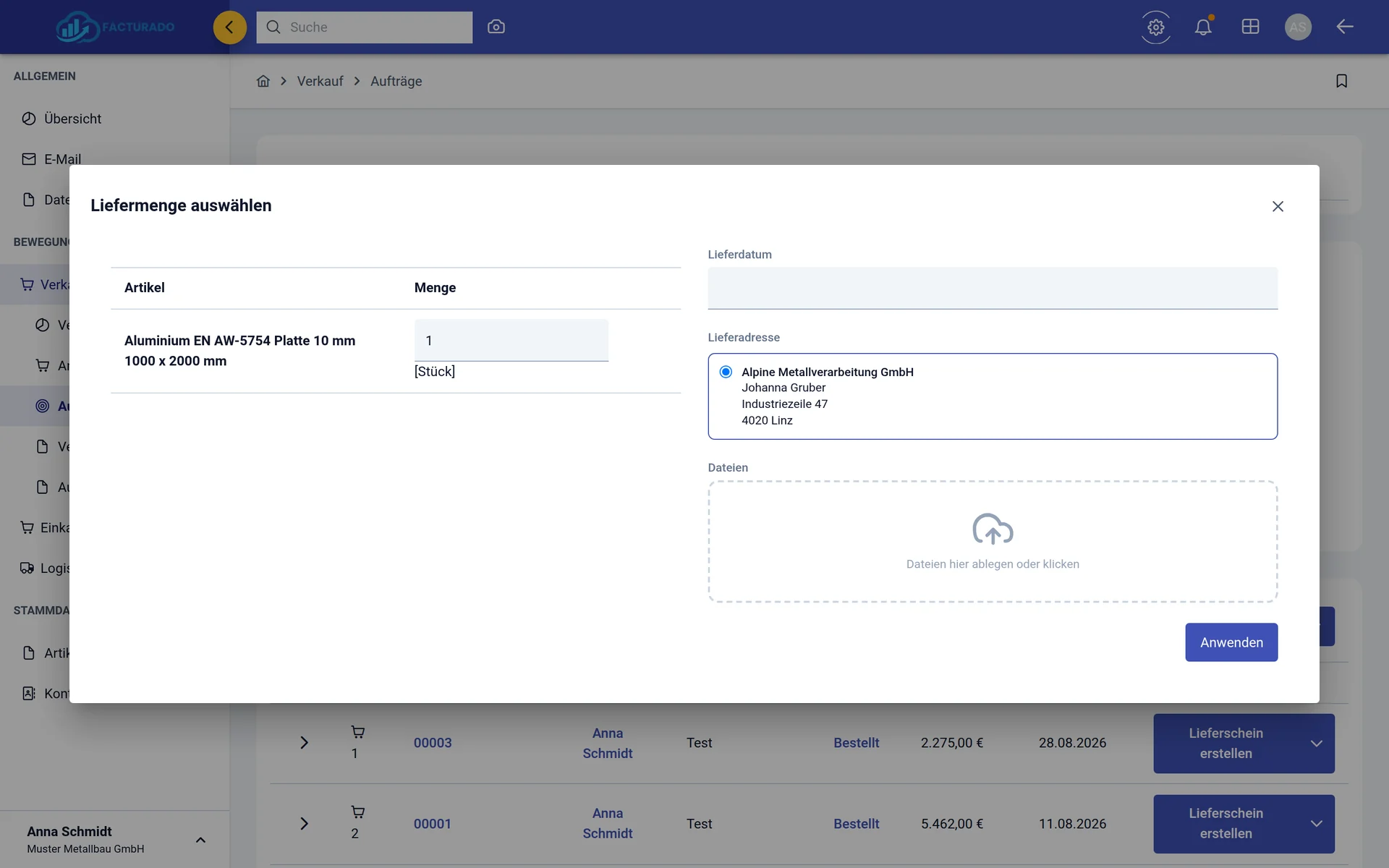
An order becomes a delivery note – choose quantity, delivery date and address - 5The order becomes an invoice
VerkaufAufträgeZeile ▾Rechnungsentwurf erstellen You decide which quantities to bill — so partial invoices are possible, with or without a delivery note. Without a prior quote, create an invoice directly under Verkauf › Ausgangsrechnungen. Check invoice date, service date and payment terms.
- 6Generate and send the e-invoice
Speichern ▾PDF herunterladen For invoices, facturado automatically generates a ZUGFeRD invoice with the XRechnung profile: one PDF your customer can read and their software can process. No extra step is needed. Send it like the quote, via the envelope next to the file.
- 7Correct and remind
VerkaufAusgangsrechnungenZeile ▾Stornorechnung erstellen The same menu offers Gutschrift erstellen (credit note) and Duplizieren (duplicate). If a payment is overdue, create the 1st, 2nd or 3rd reminder under Speichern ▾ in the invoice; sending it raises the invoice's reminder level.
7Purchasing
Purchasing mirrors sales: you collect what is needed, ask several suppliers at once, order from the best one, receive the goods and match the incoming invoice against order and goods receipt.
- 1Collect demands
EinkaufBedarfe Drag open demand positions into an enquiry. From a customer order, create a demand via Speichern ▾ › Bedarfsanfrage anlegen.
- 2Ask several suppliers
EinkaufSammelanfragenNeue Anfrage A collective enquiry (Sammelanfrage) holds the line items once and as many suppliers as you like. Anfrage versenden sends it to one supplier, Alle versenden to all at once — each as a PDF by email. The status changes to Angefragt (enquired).
- 3Order
EinkaufSammelanfragenZeile ▾Beschaffen Choose the supplier and the quantity — facturado creates the purchase order and opens it. Under Einkauf › Bestellungen you generate the PDF and send it like any other document.
- 4Receive the goods
LogistikWareneingangNeuer Wareneingang On the left are all open purchase order lines of your suppliers. Pick what has arrived, enter the delivered quantity and attach the supplier's delivery note as a file. A photo is even quicker: drag the delivery note into the AI assistant and choose Als Wareneingang erfassen (capture as goods receipt) — its lines are matched to the open orders.
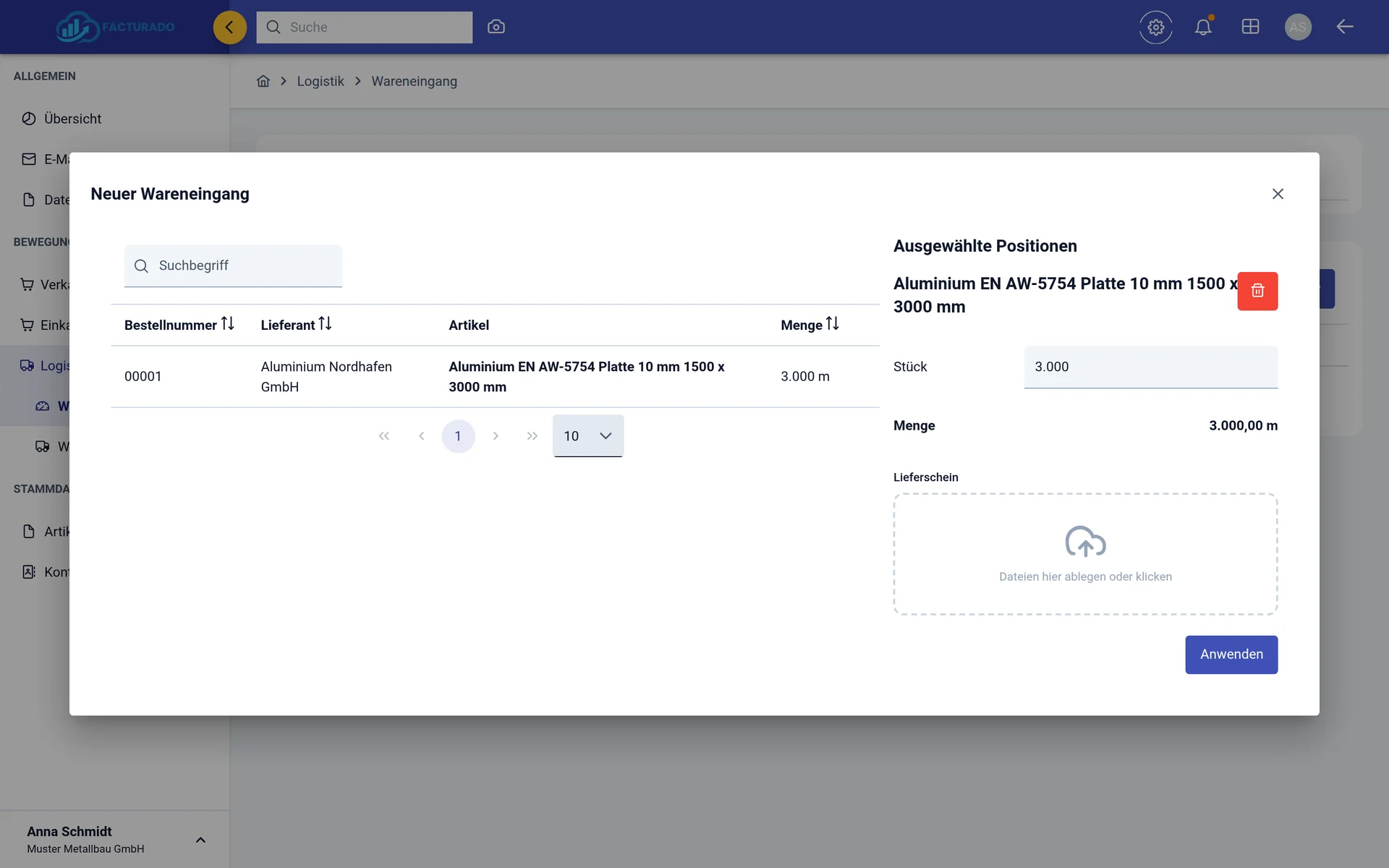
New goods receipt: open purchase order lines on the left, received goods on the right - 5Capture the incoming invoice
EinkaufEingangsrechnungenNeue Rechnung Drop the invoice into the dialog as PDF, XML, JPG or PNG. An embedded e-invoice is read exactly; everything else is read by the AI. The supplier is found by VAT id and name, and open purchase order lines are offered for matching. If the line items do not add up to the invoice total, facturado adds a "Differenz zur Rechnungssumme" (difference) line so nothing gets lost. Without a file, use Manuelle Eingabe (manual entry).
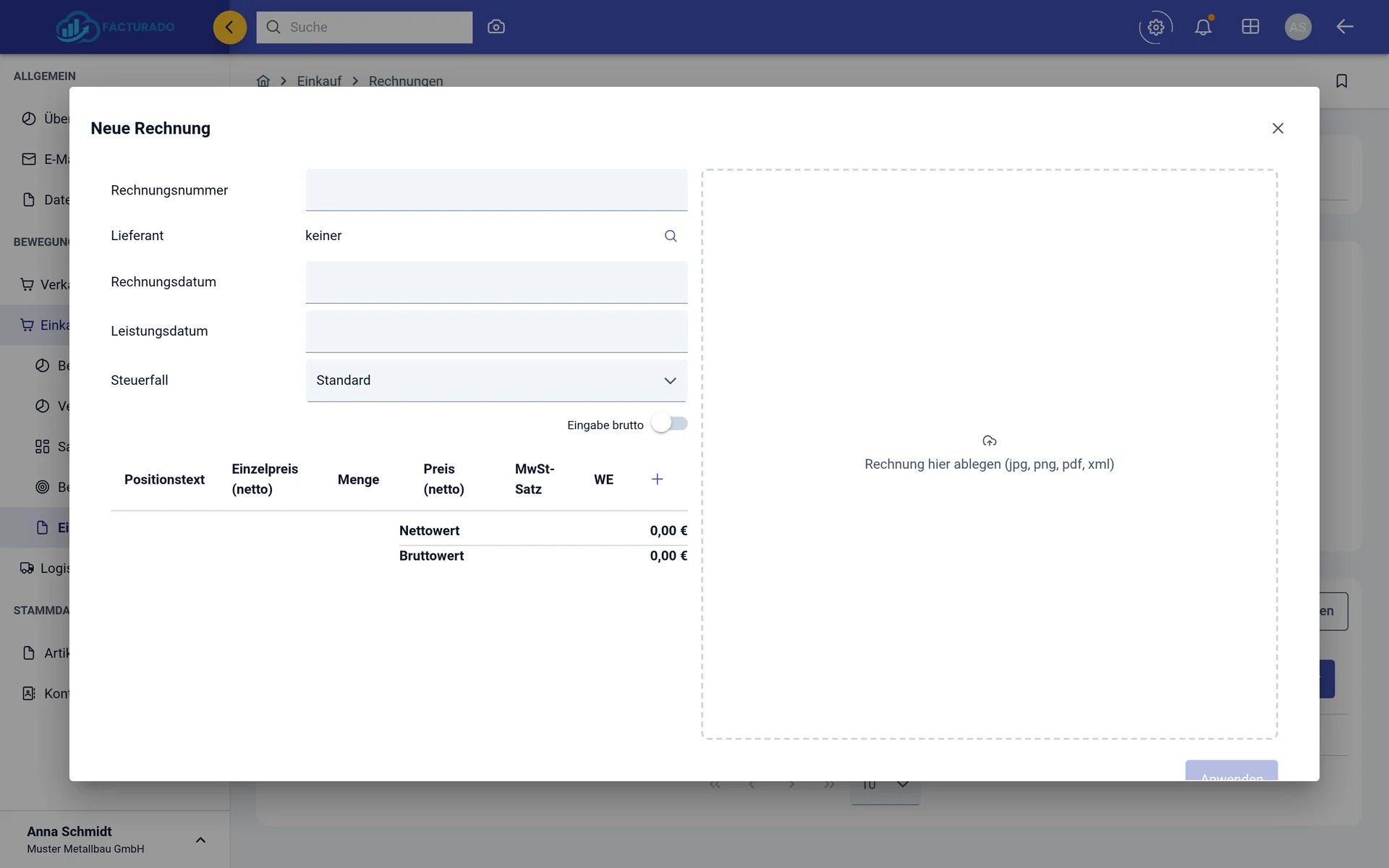
Capturing an incoming invoice: drop the file on the right, check the fields - 6Pay
EinkaufEingangsrechnungenFür Zahlung auswählen Select due invoices and settle them together with Ausgewählte bezahlen (pay selected) — or one at a time with Bezahlen in the row.
Three more ways incoming invoices get into facturado:
Under Allgemein › E-Mail, every email has an Eingangsrechnung button. The attachment is read, the sender matched to an account and the email marked as handled.
The camera in the top bar: Beleg fotografieren (photograph) on your phone or Beleg hochladen (upload) at your desk.
Drag a file into the assistant and choose Als Eingangsrechnung erfassen (capture as incoming invoice).
Whatever the AI reads reaches you as a draft. Nothing is saved or paid until you have checked it.
8When you grow
Starter covers the process chain from quote to incoming invoice — delivery notes and goods receipts included. Once you keep stock, Professional unlocks the warehouse: goods receipts book onto storage locations, orders are picked, packages and tours are planned, stock is reported on — and you manage several internal accounts for several companies. Your data and documents stay where they are; only menu entries are added.